

No developer needed
How to add live chat to your website in three steps.
Create a free account, paste one line of code, and start answering visitors. It works on any website, with guides for every popular site builder.
The three steps
-
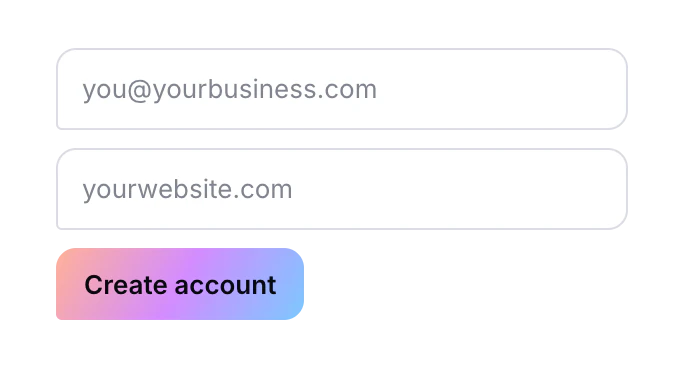
Create your free account
Sign up with your email, then add your website's name and address. There's no credit card and nothing to download.
-
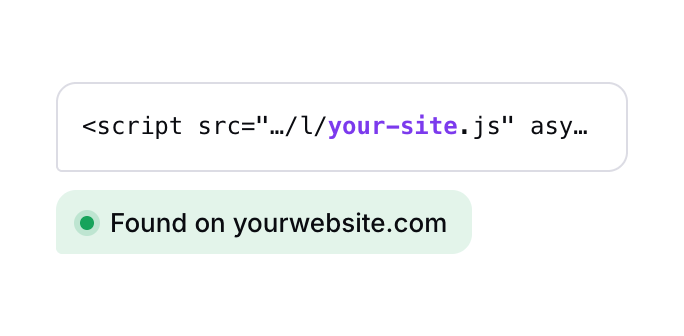
Add one line to your website
Copy your install code and paste it before the closing </body> tag, or into your site builder’s footer code box. The dashboard checks that it’s found.
-
Start talking to visitors
The chat button appears on your site. Messages arrive in your inbox as they’re sent, and you reply from any browser.
Install guides
Paste one line. Done.
Your install code is the same on every platform. It looks like this, with your own site in it. Pick your site builder to see where it goes.
<script src="https://chat.quarito.com/l/your-site-id.js" async></script>How to add live chat to any website
- Copy your install code from Administration › Chat Widget.
- Paste it just before the closing
</body>tag on every page, or once in your site’s shared footer template. - Publish the change. Check that it’s found from Administration › Chat Widget › Check installation.
How to add live chat to WordPress
- Copy your install code from Administration › Chat Widget.
- In WordPress, open Appearance › Theme File Editor and pick
footer.php, or install a header-and-footer code plugin such as WPCode. - Paste the code just before
</body>(in a plugin, into the Footer box) and save. - Clear any caching plugin. Check that it’s found from Administration › Chat Widget › Check installation.
How to add live chat to Shopify
- Copy your install code from Administration › Chat Widget.
- In Shopify admin, go to Online Store › Themes, and choose … › Edit code on your live theme.
- Open
layout/theme.liquidand paste the code just before</body>. - Save. Check that it’s found from Administration › Chat Widget › Check installation.
How to add live chat to Wix
- Copy your install code from Administration › Chat Widget.
- In your Wix dashboard, open Settings › Custom Code. Wix asks for a premium plan and a connected domain.
- Click Add Custom Code, paste the code, choose All pages, and place it in Body – end.
- Apply and publish your site. Check that it’s found from Administration › Chat Widget › Check installation.
How to add live chat to Squarespace
- Copy your install code from Administration › Chat Widget.
- In Squarespace, open Settings › Advanced › Code Injection. Squarespace asks for a Core plan or higher (Business on older plans).
- Paste the code into the Footer box and save.
- Check that it’s found from Administration › Chat Widget › Check installation.
How to add live chat to Webflow
- Copy your install code from Administration › Chat Widget.
- In Webflow, open Site settings › Custom code.
- Paste the code into Footer code and save.
- Publish the site. Check that it’s found from Administration › Chat Widget › Check installation.
How to add live chat to Google Tag Manager
- Copy your install code from Administration › Chat Widget.
- In Google Tag Manager, create a new tag of type Custom HTML and paste the code.
- Set the trigger to All Pages.
- Save the tag and Submit to publish the container. Then open your site to see the chat button: the installation check reads your page’s HTML, so it can’t see code that Tag Manager adds later.
Built with PHP, React, Next.js, Framer or Ghost? See every install guide, or install it with AI.
After you install
A conversation, from hello to happy.
Here's what happens when a visitor writes to you, and what your team does about it.
-
A visitor writes
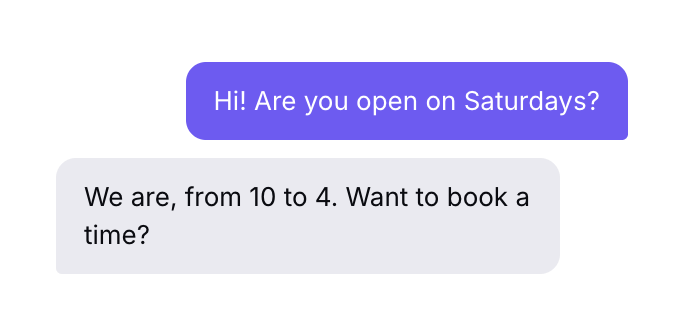
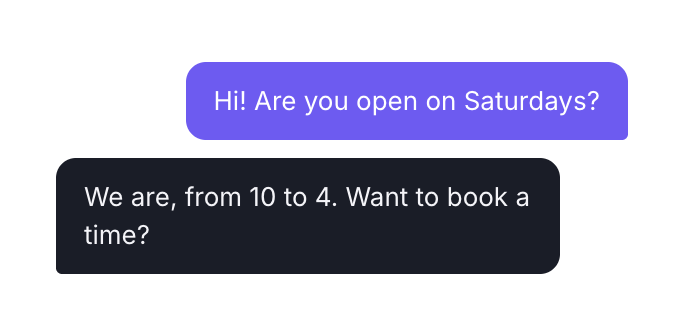
They open the chat on any page. You can ask for their name and email first, or let them type straight away.
-
Your team is alerted
The chat appears in the inbox with a sound and a desktop notification, or goes straight to the online teammate with the fewest open chats.
-
You answer
See the page they're on and their past chats. Use a saved reply, send a file, or hand the chat to a teammate.
-
The chat closes
The visitor rates it and can email themselves a copy. Quiet chats close by themselves after a time you choose.
Make it yours
Five things to set up in your first ten minutes.
None of them are required to start. Each one makes the chat feel more like your business.
-
Your colour and logo
Match the chat to your brand, and write your welcome message.
Administration › Chat Widget -
Your office hours
Set the days and times you answer, and what happens outside them.
Administration › Settings -
Your team
Invite teammates by email as agents, managers or admins.
User Management -
Saved replies
Write answers to the questions you hear most, then type / to use them.
Administration › Message templates -
Help articles
Publish answers customers can find by themselves, day or night.
Administration › Knowledge Base
For developers
Know exactly who you're helping.
Pass your signed-in customers' names and emails to the chat, verified with a hash from your server. Your team sees who they're talking to, and nobody can pretend to be someone else.
Open and close the chat from your own buttons with Quarito.open() and Quarito.close().
// On pages where a customer is signed in
Quarito.identify({
  name:  "Ada Lovelace",
  email: "[email protected]",
  hash:  "HMAC-SHA256 of the email"
});

// Open the chat from your own button
Quarito.open();How do I add live chat to my website?
Create a free Quarito account, copy your install code from Administration › Chat Widget, and paste it just before the closing </body> tag of your site, or into your site builder's footer code box. The chat button appears once the page is published.
Do I need a developer to install it?
No. If you can copy and paste, you can install Quarito. The guides above show exactly where the code goes on WordPress, Shopify, Wix, Squarespace, Webflow and Google Tag Manager.
How do I know it's working?
Use Check installation in Administration › Chat Widget. It looks for the code on your website and tells you when it's found. If you used Google Tag Manager, open your site instead and look for the chat button.
Will the chat appear on every page?
It appears on every page that has the install code. You can also keep it off pages you choose, like a payment or sign-up page, from the chat widget settings.
Can I use the same account on several websites?
Yes, on Premium. Add each website to your account and it gets its own install code, chat settings and inbox.
Can I change how the chat looks after installing?
Yes. Change colours, messages and the chat button in the dashboard, and your website shows the new look within a minute. You never need to paste the code again.
Ready in the time it takes to make a coffee.
Free forever plan · No credit card · No developer needed